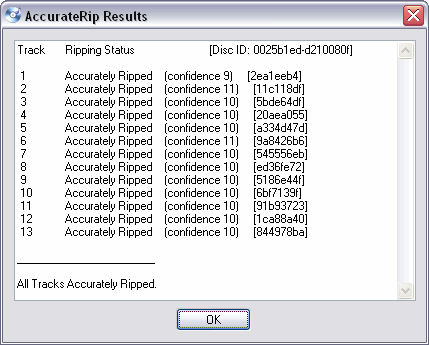
Before you start playing your music, you need to have it on your hard drive. Of course, you can download it from the Internet (legally), or you can rip your existing collection of CD’s and convert them to the format that you want. We will talk about two rippers that are not only freeware but also the best in the business.
Exact Audio Copy (EAC)
This is the best CD ripping and converting software on the planet, period. Exact Audio Copy is the brainchild of André Wiethoff, who is currently studying at the University of Dortmund and says that the reason he created EAC was that he got fed up with all the other CD rippers available around. We couldn’t agree more! The best part of EAC is that it is cardware (freeware, in disguise actually!). All you need to do to register your copy of EAC is to send a card, a postage stamp addressed to André Wiethoff, and that’s it, you’re done!

EAC is in its beta stage at version 0.95 and is approximately a 1.5 MB download. Not too much of a bandwidthhogger, this program! Installing EAC is pretty simple and easy to understand instructions are available during the installation process to help you.
EAC by itself is only able to rip music to WAV files. If you want to compress these WAV files using external decoders such as the LAME MP3 encoder or Ogg Vorbis, then you will need to download and install these software from the internet and configure it with LAME.
EAC comes with options to obtain CD information from freedb.org. Again you will need to configure the options in EAC. We will help you out with a small workshop on EAC, which will let you configure EAC and help you create quality rips from your CD.
EAC Workshop
1. Download EAC from
http://www.exactaudiocopy.org/eac6.html and then install it.
2. Download LAME from
http://lame.sourceforge.net. This will be a zip package (latest is 3.96.1 stable) and you will have to unzip it.
3. After installing EAC, run the program.
4. Next, you will see the option to choose the CD/DVD-ROM drives that you will be using for ripping the CD’s.
5. On the next screen, you will be asked to choose between EAC providing you with accurate results or if speed is only concern. Error correction is one major factor here, since if speed is your only criteria, error correction when ripping CD’s will be poor. Choose “I prefer accurate results” only. This will help in getting good quality rips. Make sure that you have a audio CD inside the drive before you click on the next button.
6. The next screen will tell you about your drives capabilities.
7. Finally, EAC has your drive configured and ready, but wait there’s more to go. We still need to configure the encoder in EAC. Click on Next to continue. In this workshop, we are using LAME, which is a free MP3 encoder. You can configure any other encoder such as PsyTel AAC encoder or Ogg or FLAC or APE, whatever you prefer. The steps though, remain the same.
8. Click on Next to continue. This will make EAC search for the LAME.exe file which is the encoder executable needed for compressing the ripped WAV file to MP3.
9. Once EAC locates the LAME encoder executable. Let the default options remain unchanged.
10. The above instructions are the most important in the setting up EAC, once done, here is how you go about ripping a song. There are further options that you can use but are beyond the domain of this blog. You will need to research and try these options. Remember, some of the options such as enabling Paranoid mode for reading CD’s can damage your optical drive and in some cases the CD too. For this, insert a CD in the drive and start EAC. If you have the Freedb database options enabled, you will be able to see the CD information.
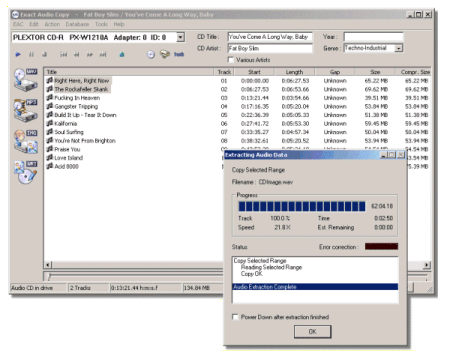
Say, if you want to rip just one song, click on the song that you want to rip and click on the MP3 button on the side bar. If you want to rip the whole CD, do not select any song, just click on the MP3 button. EAC will only prompt you to specify the location to save the songs to. Once that is done, you are good to go. This is what happens next.
EAC has rocketed to popularity since the time it became available to the public. Nevertheless, what we have mentioned here is just the tip of the iceberg. There is a lot of customization that is possible with EAC, but if you are looking for a no-fuss, straight up Audio CD rip, then this software will definitely interest you.
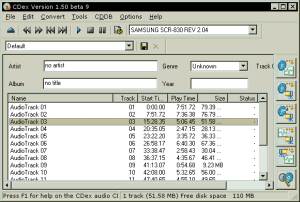 Using CDex is simplicity itself. Put a CD in your computer, load CDex, and click on the button to Extract The Tracks As Compressed Audio files. Wait a couple of minutes for it to do its stuff. Your CD will have been converted to mp3 files (or ogg, wma, monkey audio, or some even more obscure file types that I've not heard of). You can then listen to these files, and the rest of your CD collection that you've converted, without having to dig out the CD you want. Mp3s are soooooo much easier than CDs! If you don't have enough hard drive space for your CD collection, buy a bigger hard drive!