Ask any real music lover if he or she likes to listen to music on a PC? If the answer is yes, then they definitely use Winamp. Winamp has been around the PC music scene since the time MP3s came into being.
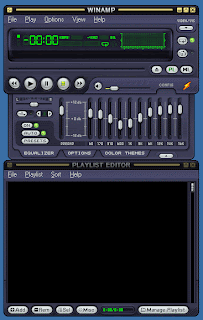
Here is the complete look of Winamp 5.24 - Skin, Equaliser and Playlist:
Winamp is the brainchild of Justin Frankel, an uber geek who was not satisfied with how MP3s sounded on PCs. In fact, there was no decent player that could even play MP3s properly at that time. Therefore, Justin went ahead, coded his own player, and named it Winamp. The rest is history.
Winamp was first shared amongst a few friends and from there the chain reaction started. Soon, Winamp was the most downloaded MP3 player on the Web and Justin and his friends started their company called Nullsoft, their mascot being the llama!
Winamp didn't become the most downloaded MP3 player just because it was the first one. Well, that was one of the reasons, but the other reason was its user interface. At first, it could only play MP3s but later on support for WMA was added. Today the latest version of Winamp can also play Ogg files and there are other free plug-ins available that lets it play other kinds of music files too.
You can download the latest version of Winamp from http://www.winamp.com/player/free.php/. There are two versions that you can download-Free and Pro. There are some advantages in the Pro version that are absent in the free one (obviously) however there is no limitation on playing music.
During installation, you will get the option of whether you want to see Winamp in Classic Skin or the Default Skin. Depending on what you choose, the player will open using that skin.
In Winamp, the skin refers to the way it appears to the user. Think of a skin as wallpaper that you would change in Windows. Only making a skin for Winamp requires some skills since it has to be resized and adjusted according to the dimensions of the player.
Okay, enough of that... lets move on to the interesting part. As you can see, Winamp also features an equaliser and a play list window. The equaliser lets you adjust and listen to your music according to your preferences. The Playlist window lists the songs that you have chosen to play in the player.
When Winamp first made its debut, it was a very simple player with support for only MP3 playback. Its journey since those times has been an extremely interesting one. Today, Winamp can be considered as an all-in-one solution for your audio playback, ripping and decoding, recording and more in Windows. With user support and members active worldwide this player has countless plug-ins, skins and enhancements that you can use for whatever audio task that you have in mind.
Using Winamp is child's play, since if you have ever used a tape player you can easily identify with it. Buttons are easily accessible and the player is extremely manageable. If you don't like the equalizer window, do away with it. If you want an unobtrusive mode, check out the Winamp mini mode, where the player doesn't take more than a single line on your whole screen.
Winamp not only plays audio but also video. There is also a proprietary video format for Winamp which is the .nsv format. Winamp also plays streaming online radio using Shoutcast. You can also download music by popular and not so popular artists from the Winamp Web site.
Winamp is one of the most used players on the face of this earth, and the only thing that we can say is may the tribe increase.
Tips for Winamp
1. Changing colours in Winamp
Winamp 5 (for that matter, even 3) has an interesting feature. Instead of skinning Winamp, you can choose various colours for different moods. For this, first, click the "Config" button on the main Winamp window. When the multi-tabbed dialog box appears below, click the "Colour Themes" tab. Now, choose a new colour theme as you desire by double-clicking a theme. "Varsity" is good when listening to music from the yesteryears. If the night bug's bitten you, try the "City Night" colour.
When you are done, click the button with the small arrow pointed upwards next to the tabs. This closes the "Configuration Drawer".
2. Use your own font instead of the regular Winamp font in the playlist window
Generally, the playlist font is determined by the current Winamp skin. All Winamp skins including the Modern and Classic skins have their own fonts, for that matter most skins downloadable over the Internet have their own fonts. So, if you don't like these fonts and want your own, here's what you do:
1. Right-click on the Winamp 5 title bar.
2. Choose "Options", then "Preferences".
3. When the "Preferences" dialog box appears, click "General Preferences".
4. Click "Playlist".
5. In the right pane, uncheck "Use skin or language pack font"
6. Next to the "Use font" pull-down, choose your desired font from the ones provided.
7. Click "Close" to close the dialog box.
3. Scroll Winamp Title in Taskbar
There is an option to scroll the title in Taskbar. Here's a way by which you can enable this option:
1. Right-click on Winamp 5's title-bar and choose "Options", then "Preferences".
2. When the "Winamp Preferences" dialog box appears, click on "Scroll title in the Windows taskbar".
4. Managing file associations in Winamp
If you have used Winamp earlier or are using it for the first time, then there is no way that you could have ignored the fact that Winamp takes file associations of all media files. So if an MPEG file was earlier associated with Windows Media Player, it will now open in Winamp. Sometimes, it does that even if you have restored the file association and then restarted your computer. Here is what you need to do to get rid of this irritating problem.
1. Right-click on Winamp 5's title-bar and choose "Options", then "Preferences".
2. When the "Winamp Preferences" dialog box appears, click on "File Types".
3. Uncheck "Restore file associations at Winamp start-up".
4. Press "Close" to close the "Winamp Preferences" dialog box.
5. Turn on visualizations for every song played in Winamp.
Visualizations are not enabled by default in Winamp and if you want to see the visualizations, you need to enable it every time you restart Winamp. Here's a way by which you won't need to.
1. Right-click on Winamp 5's title bar, choosing "Options" then "Preferences".
2. When the "Winamp Preferences" dialog box appears, click "Plug-ins".
3. Check "Auto execute visualization plug-in on playback".
4. Click "Close" to close the preferences dialog box.
The good: Basic, efficient, and fun to use; plug-in architecture lends itself to enhancements and customizations; nag-free access to online media, including AOL's audio and video services and 20 XM Satellite Radio channels; loyal and creative community support.
The bad: Detached, multipanel interface isn't for everyone; no direct access to online music stores besides AOL Music Now; limited to 2X ripping and burning in the free version; free version lacks MP3, AAC, and WMA encoding.
The bottom line: Winamp is still a fun player for customizing your playback experience, but most users will prefer the all-in-one experience of Windows Media Player or iTunes.
 Musicmatch Jukebox has its fair share of fan following, however with new players coming up every other day and older players getting a makeover of late; Musicmatch Jukebox does need to renew its looks.

